User Guides
Event Staff Guide
🎫 Event Staff User Guide — POS Portal
Welcome to the evev.love Staff Portal! This guide covers everything you need to check in attendees, sell walk-in tickets, and track sales at the door.
There are two staff roles on the platform:
| Role | What They Do |
|---|---|
| 🚪 Door Staff | Scan QR tickets and verify attendees at entry |
| 💵 Cashier | Sell walk-in tickets and process payments |
🔐 Logging In
Staff log in using their assigned Myanmar mobile number and a one-time OTP code.
- Open the staff portal at
/pos - Enter your phone number (without +95)
- Tap
Send OTP Code
- Enter the 6-digit code
- You'll be taken directly to your role's dashboard
⚠️ Important: Only admins can create staff accounts. If you don't have login credentials, contact your event organizer.
🚪 Door Staff — Ticket Check-In
Staff Dashboard
When you log in as Door Staff, you'll see your check-in dashboard:
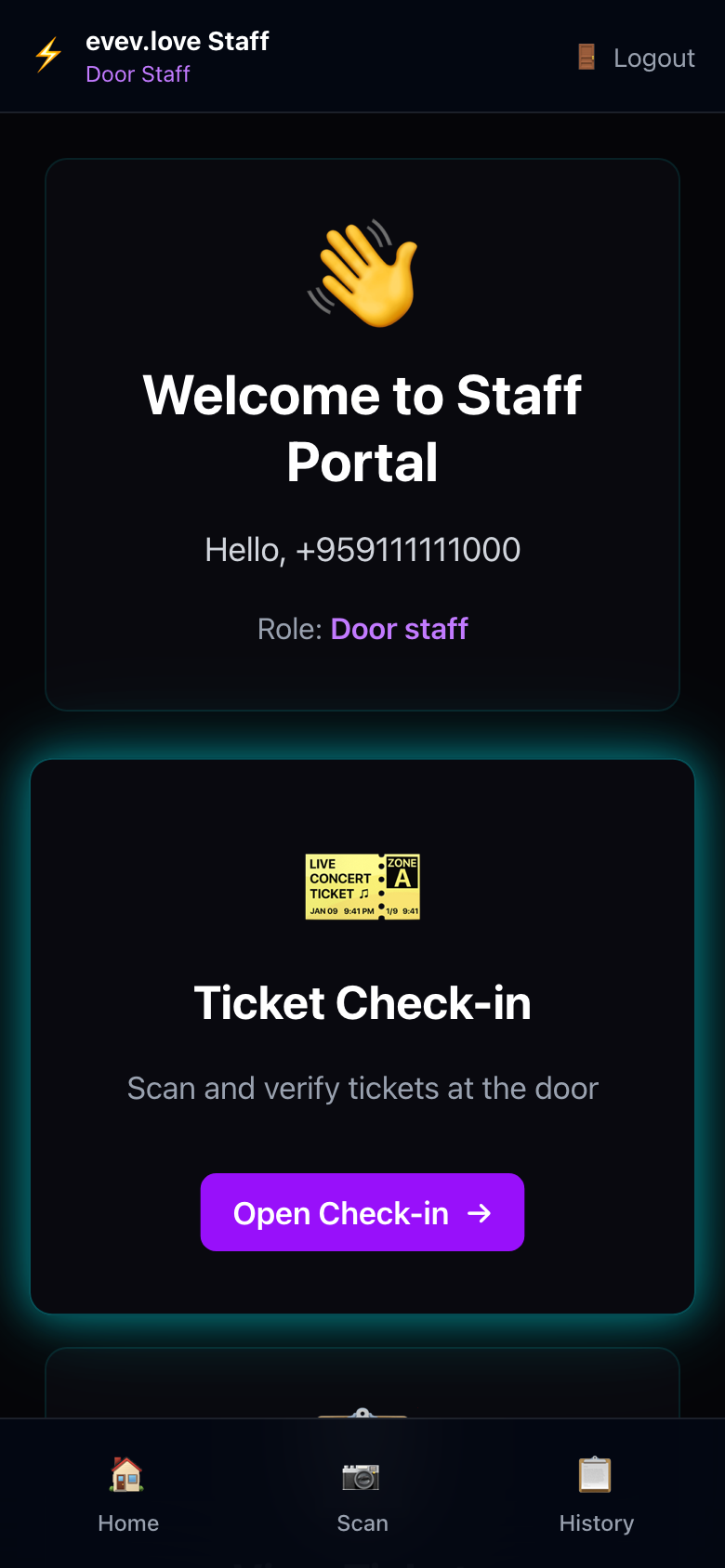
The dashboard shows:
- Your role (Door Staff)
- Quick access to Ticket Check-in
- Bottom navigation: Home, Scan, History
Check-In Dashboard
Tap Open Check-in
to see today's check-in overview:
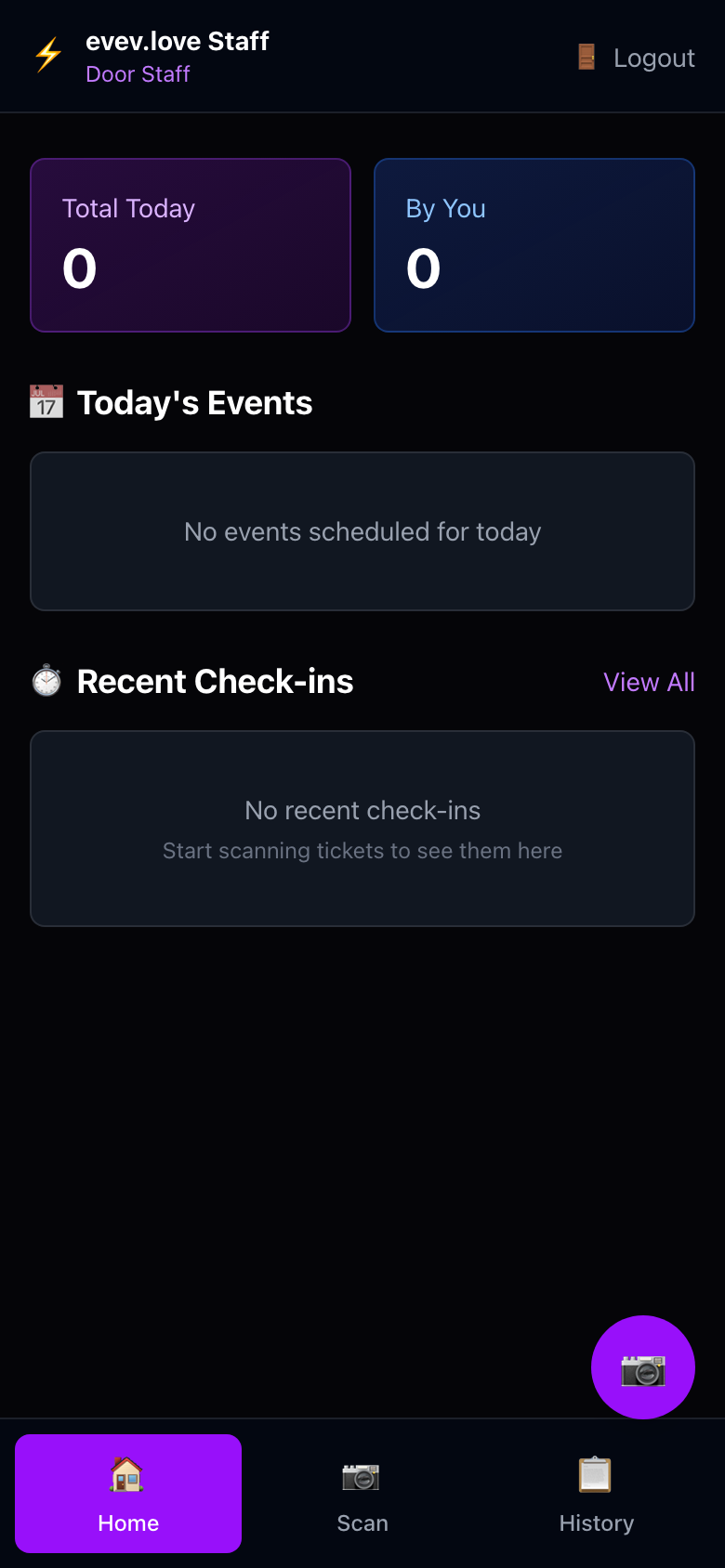
Stats at a glance:
- Total Today — All check-ins across all door staff
- By You — Check-ins you've personally processed
- Today's Events — Events you're assigned to
- Recent Check-ins — Latest scanned tickets
Scanning QR Codes
Tap the Scan tab or the camera button to open the scanner:
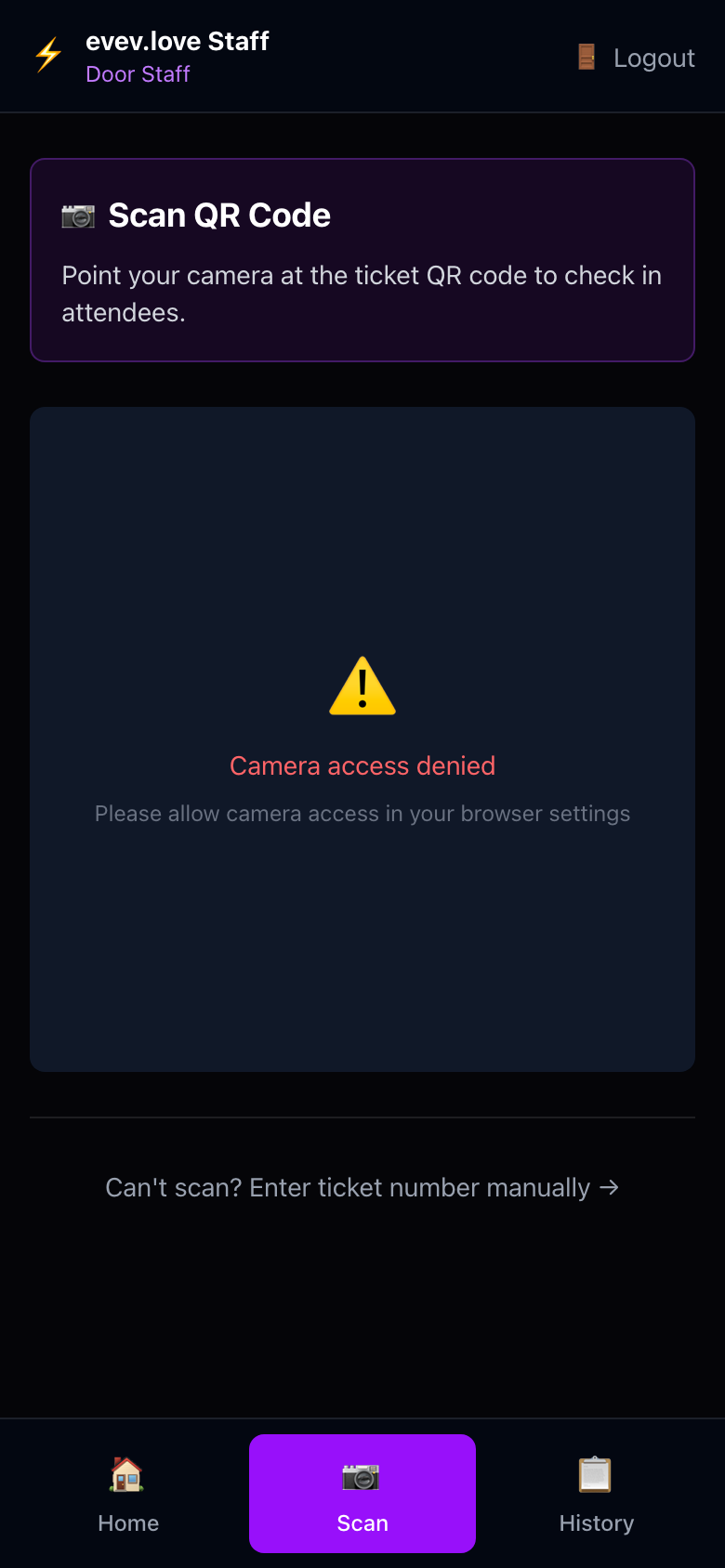
How to scan:
1. Allow camera access when prompted
2. Point your camera at the attendee's ticket QR code
3. The ticket will be verified automatically
4. You'll see a success or error message
Scan Results:
| Result | What It Means | Action |
|--------|---------------|--------|
| ✅ Valid | Ticket is genuine and unused | Let them in |
| ❌ Already Used | Ticket was checked in before | Check ID, verify with manager |
| ❌ Invalid | Ticket not found or cancelled | Do not admit — contact manager |
| ⚠️ Wrong Event | Ticket is for a different event | Direct attendee to correct venue |
Manual Entry
If the QR code is damaged or camera isn't working:
- Tap
Can't scan? Enter ticket number manually
- Type the ticket number from the attendee's phone
- Tap Verify
Check-In History
Tap the History tab to review all check-ins you've processed:
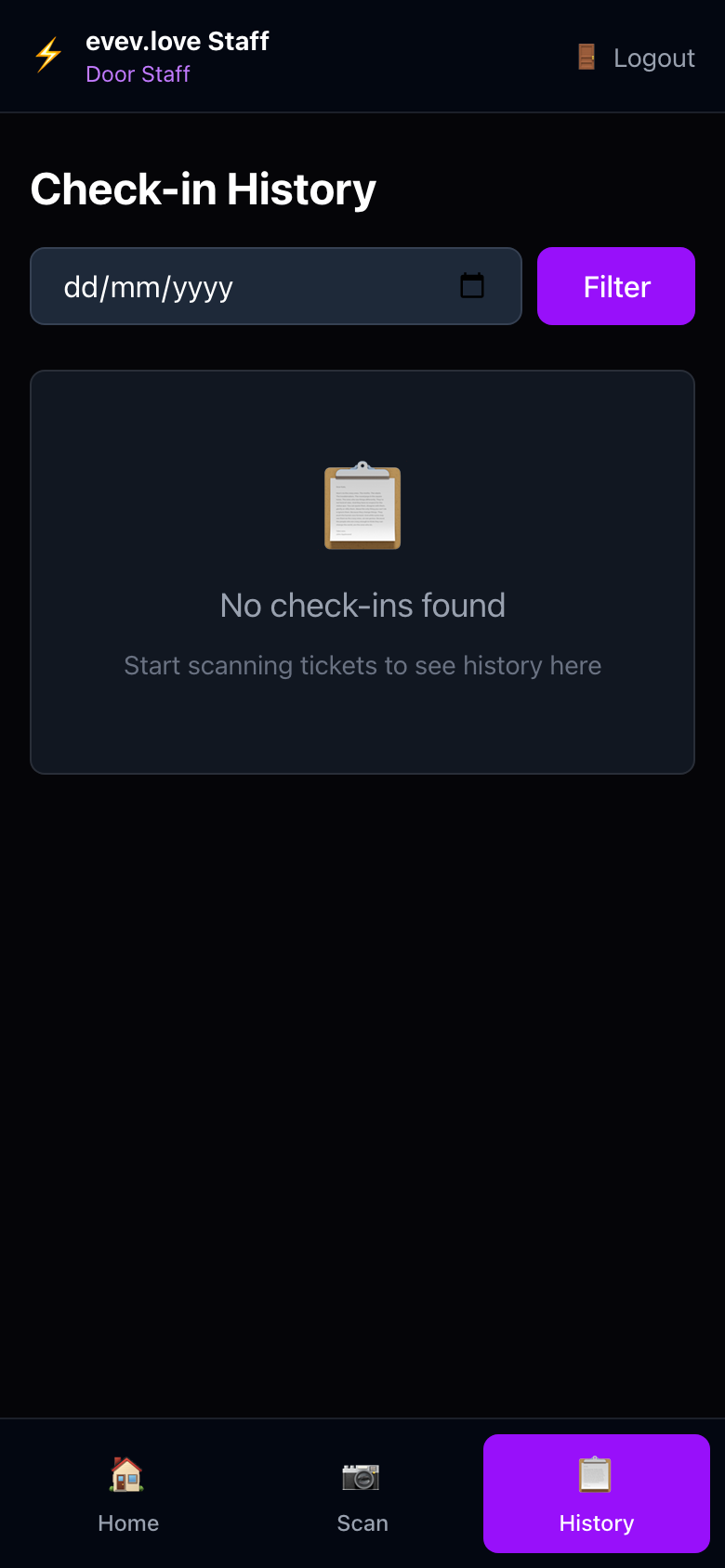
The history shows:
- Ticket number and attendee name
- Event name
- Check-in time
- Door staff who processed it
💡 Tip: Check history if there's a dispute about whether someone already entered.
💵 Cashier — Walk-In Sales
Sales Dashboard
When you log in as Cashier, you'll see the sales dashboard:
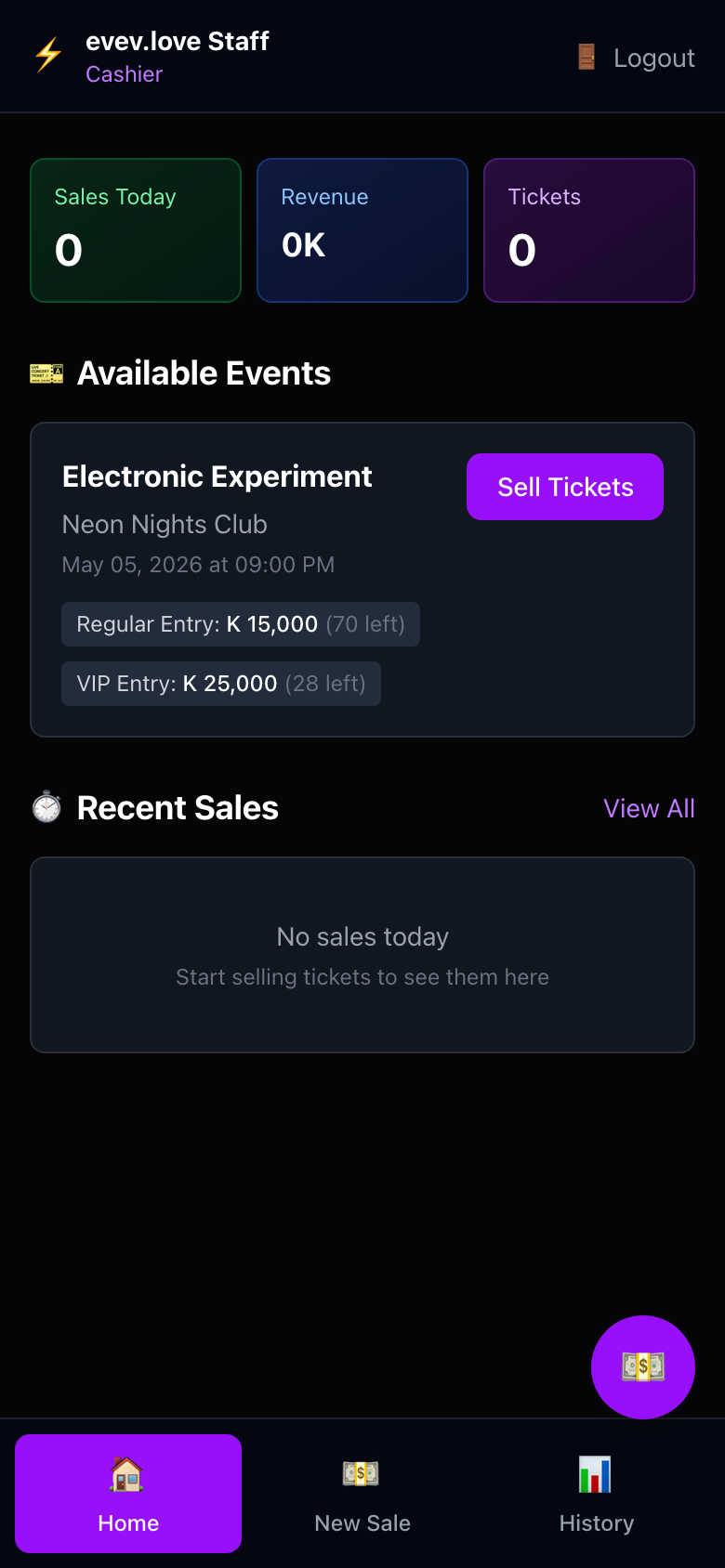
Top stats:
- Sales Today — Number of tickets you've sold
- Revenue — Total MMK collected today
- Tickets — Total tickets sold today
Available Events:
- Shows events you're assigned to sell for
- Displays ticket types and remaining inventory
- Tap Sell Tickets
to start a sale
Making a Sale
Tap New Sale
in the bottom nav or Sell Tickets
on an event:
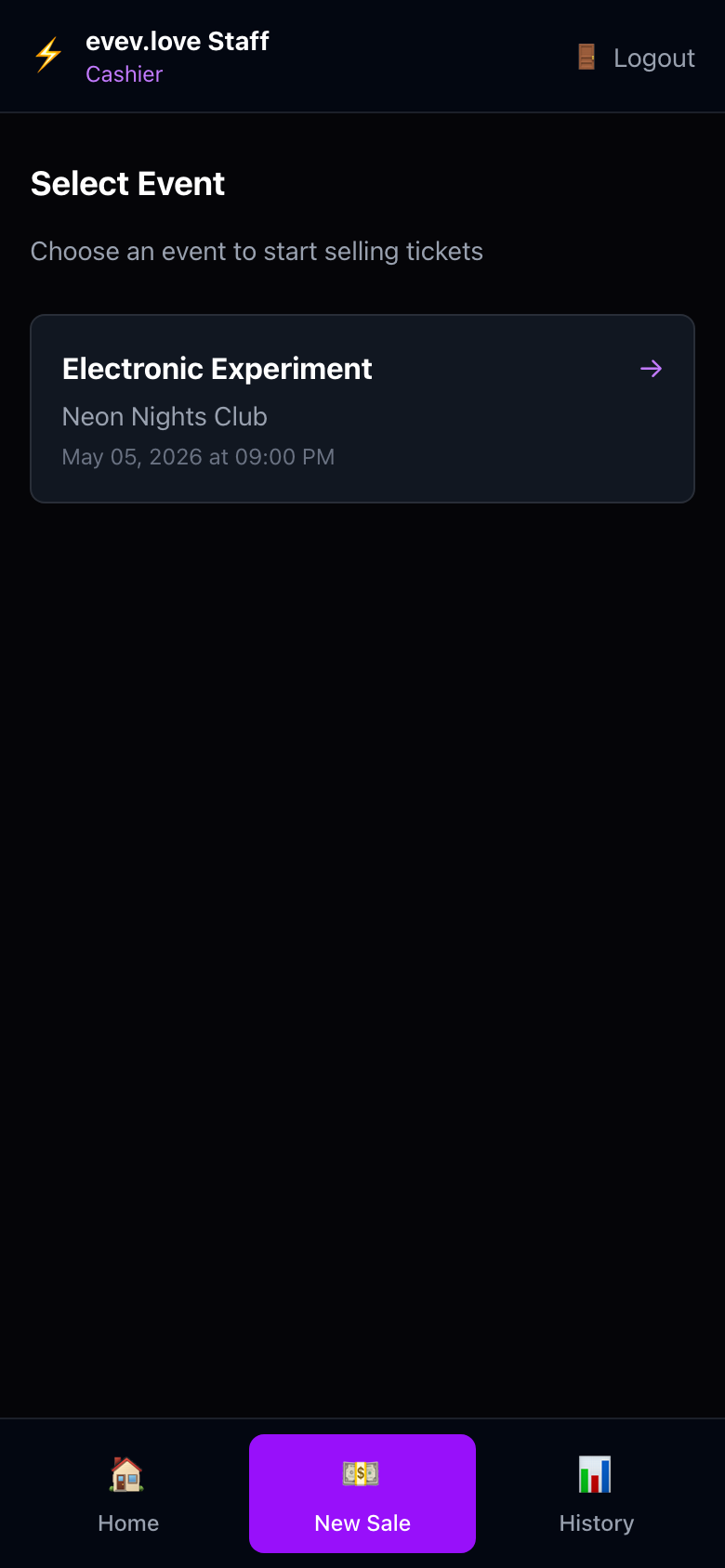
Sale flow:
1. Select Event — Choose from assigned events
2. Select Ticket Type — Regular, VIP, Early Bird, etc.
3. Enter Quantity — How many tickets
4. Collect Payment — Cash or MMQR (KBZ Pay / AYA Pay)
5. Confirm Sale — Ticket is generated instantly
6. Share/Print — Send QR code to buyer's phone or print
💡 Tip: For MMQR payments, have the buyer scan the payment QR code with their banking app.
Ticket Lookup
Tap Tickets
in the bottom nav to search and view tickets:
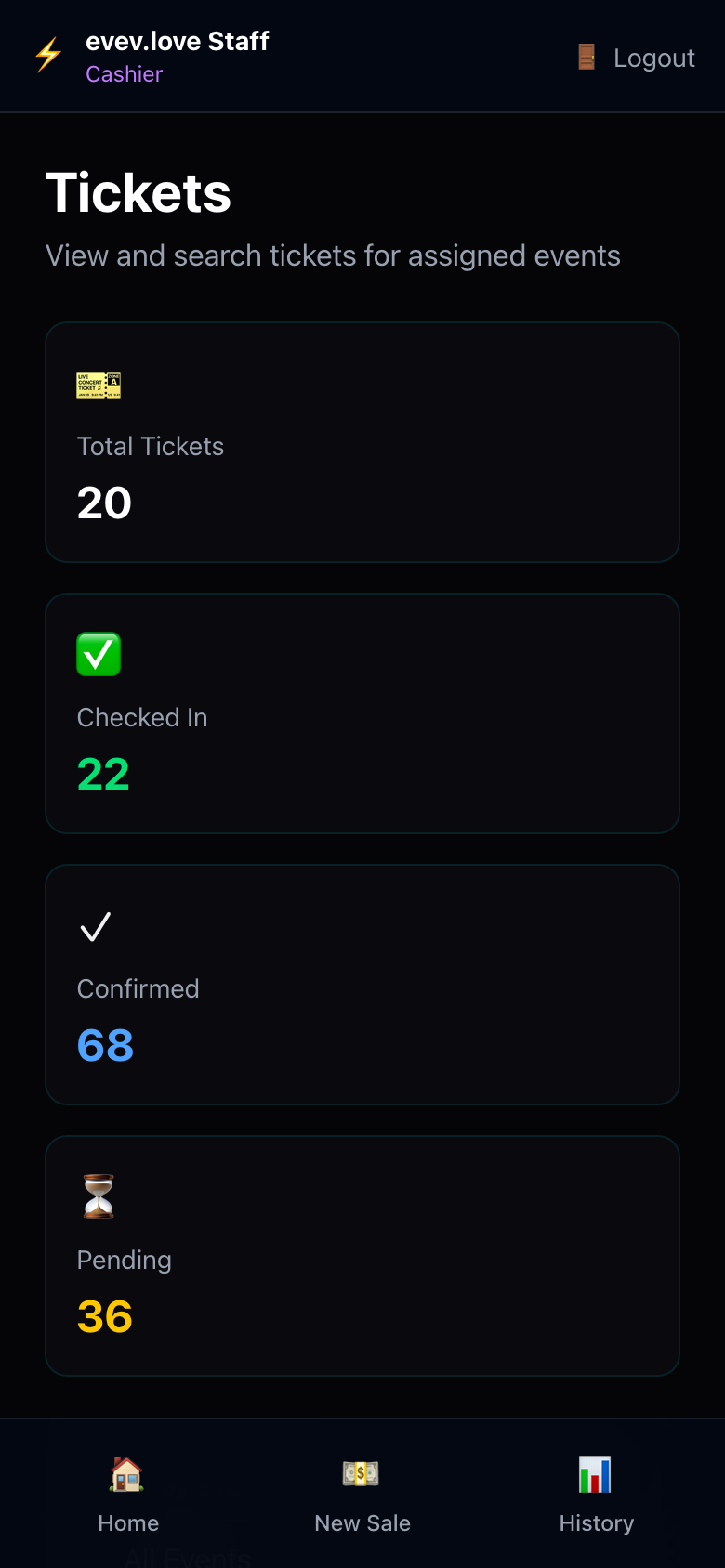
Overview cards:
- Total Tickets — All tickets for your assigned events
- Checked In — Attendees already scanned at the door
- Confirmed — Paid and valid tickets
- Pending — Orders awaiting payment confirmation
You can also:
- Search by ticket number
- Search by attendee phone number
- View individual ticket details
- Check payment status
Sales History
Tap History
in the bottom nav to see all your sales:
- View each transaction with timestamp
- See payment method used
- Re-print or re-send tickets if needed
- Check daily totals
🆘 Troubleshooting
Common Issues
| Problem | Solution |
|---|---|
| Camera won't open | Check browser permissions → Allow camera access |
| QR won't scan | Wipe lens, ensure good lighting, or use manual entry |
Ticket shows Already Used |
Check History, verify attendee ID, call manager if needed |
| Payment not confirming | Wait 30 seconds, check network, try again |
| Can't find an event | You may not be assigned — contact your admin |
| App is slow | Close other apps, ensure stable internet connection |
Who to Contact
- Technical issues: POS → Support or call the admin hotline
- Payment disputes: Note transaction ID and contact admin
- Unauthorized entry: Flag immediately in check-in history
✅ Quick Reference
Door Staff Shortcuts
| Task | How-To |
|---|---|
| Scan a ticket | Bottom nav → Scan |
| View recent check-ins | Bottom nav → History |
| Check today's totals | Bottom nav → Home |
| Manual ticket entry | Scan screen → Enter ticket number manually |
Cashier Shortcuts
| Task | How-To |
|---|---|
| Sell tickets | Bottom nav → New Sale |
| View sales stats | Bottom nav → Home |
| Search tickets | Bottom nav → Tickets |
| View past sales | Bottom nav → History |
📱 Device Tips
- Brightness: Keep screen at max brightness for easier QR scanning
- Battery: Bring a portable charger — you'll be using the camera a lot
- Internet: Connect to venue WiFi or use mobile data
- Orientation: Keep phone in portrait mode for best scanner performance
🎉 You're Ready!
Now you know how to:
- ✅ Log in to the Staff Portal
- ✅ Scan and verify QR tickets at the door
- ✅ Sell walk-in tickets with instant payment
- ✅ Search tickets and check sales history
- ✅ Handle common issues on the job
Have a great event! 🎧🎟️